Content
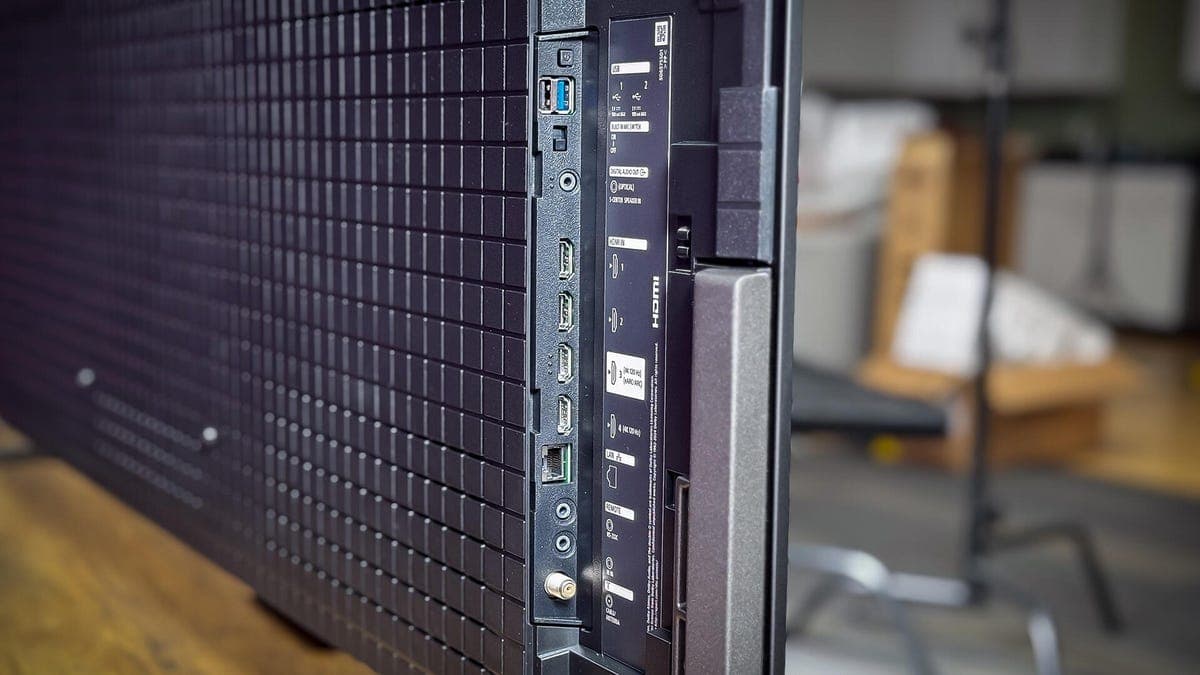
Many smart TVs come equipped with USB ports that offer more functionality than most users realize. One particularly valuable use for these USB ports is manually updating the TV's firmware, a process that can breathe new life into an older system without any additional cost. While smart TVs typically update automatically over Wi-Fi, situations involving unstable internet connections or a preference for manual control make USB-based updates an ideal alternative.
The first step to performing a manual firmware update is identifying your TV's model number. This number can be found on a sticker located on the back of the TV or within the device's settings menu, often under sections labeled "About" or "Support." Using a flashlight or your phone's camera can make it easier to read the sticker, especially for wall-mounted units. Having the exact model number ensures you download the correct firmware version.
Next, visit the manufacturer's official website and navigate to the "Support" or "Downloads" section. By entering your model number, you can locate the appropriate firmware update file tailored specifically for your TV. It’s critical to verify region and version details before downloading, as installing the wrong firmware can cause irreversible damage, sometimes rendering the TV unusable—a scenario often referred to as "bricking."
After downloading the update, the firmware file is typically compressed in a ZIP archive. Extract the contents to a convenient location on your computer, such as the desktop. The extracted files usually have extensions like .bin or .img. Be sure to use a USB drive with sufficient storage space, formatted in FAT32, as this file system is widely compatible across Windows, macOS, and Linux platforms. Before copying, back up any important data on the USB drive since formatting or overwriting files can lead to data loss.
Copy the extracted firmware files directly to the root directory of the USB drive—placing them inside folders may prevent your TV from recognizing the update. Always eject the USB drive safely from your computer to avoid corruption. With the USB prepared, turn on your TV and insert the drive into its USB port. Some TVs will detect the update automatically and prompt you to begin installation, while others require manual navigation through the settings menu to select the USB as the update source.
During the update process, it is crucial not to turn off the TV or remove the USB drive, as interrupting the update can cause severe software issues. Upon successful installation, the TV may restart automatically. To confirm the update, return to the settings menu and verify the firmware version displayed matches the latest available release.
If your TV does not recognize the firmware file, consider reformatting your USB drive or using a different one. Failing that, re-download the update and repeat the process. Should problems persist, contacting the manufacturer's customer support is advisable.
Keeping your TV's firmware current is vital for maintaining performance, security, and compatibility with other devices. Firmware updates often resolve bugs, improve responsiveness, and introduce new features such as support for updated audio and video formats or enhanced energy efficiency. By performing manual updates via USB, users can ensure their TVs remain reliable and feature-rich, even when wireless update options are limited or unavailable.